Using the Points Tab
Points are the individual sensors and actuators in your building, each labeled with a point type and a unit. For example, a point type like discharge_air_temperature_sensor must be paired with a unit that measures temperature, such as F (Fahrenheit) or C (Celsius). You can find the complete list of point types on our Data Model page.
Points are extracted from each device and automatically assigned to equipment by Staging. If Onboard's AI determines a point is not relevant to its assigned equipment, it will automatically unassign the point. You can also manually assign or unassign points to equipment at any time, see Assign-Unassign Equipment below. See Onboard's Data Model for how points relate to devices and equipment.
The Points Tab simplifies the process of modeling points in your building. Onboard’s AI automatically suggests point types and units for you, so most of the modeling work is already done. Review and adjust any prediction directly on the Points Tab.
🏷️ Edit Point Types
- To change the point type for a single point, click on the point type label for the corresponding point, or
- To change the point type for multiple points, select the points first and then use the Update Point Type button in the top menu
- In the Editor Box, select the appropriate Point Type from the dropdown menu.
- The top 5 predictions from Onboard’s AI are displayed, with confidence scores for each
- If you don’t see the type you’re looking for, uncheck the Predictions Only box to select another point type from the list
- Once you select a point type, it will be automatically applied to your selected point/s
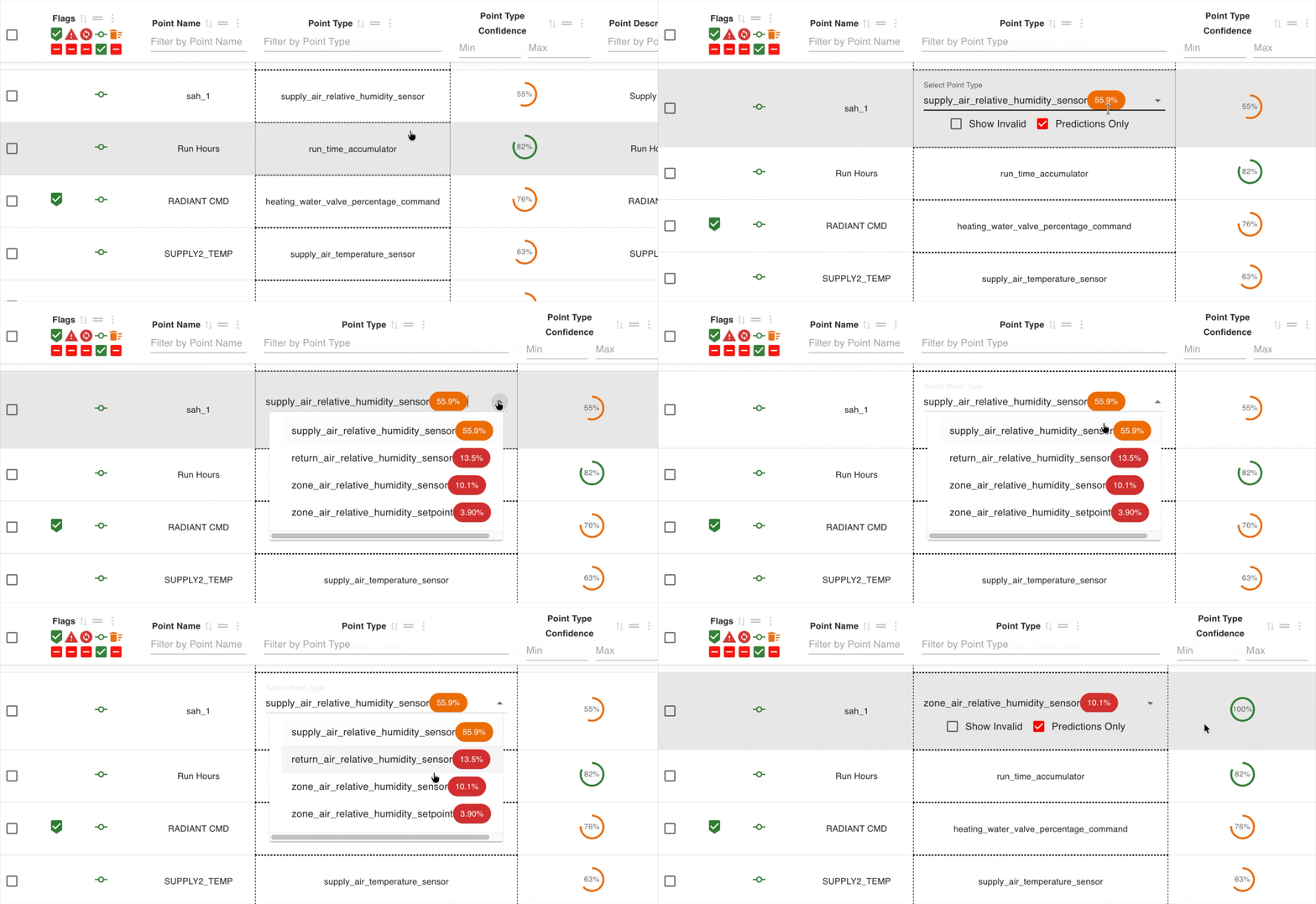
Edited labels will show a human icon in the confidence column, indicating that the label was applied by a human.
📏 Edit Units
- To change the unit for a single point, click on the Units label for the corresponding point, or
- To change the units for multiple points, select the points first and then use the Update Unit button in the top menu
- Onboard recommended units are automatically applied to the points, based on the raw unit captured from the point on the building network
- In the Editor Box, select the desired Unit from the dropdown menu
- Once you select a unit, it will be automatically applied to your selected point/s
Note: Ensure that the point type and unit match, otherwise a validation error flag will appear on the point row. You will see how to remove the validation error flag below.
⚡ Bulk Actions
Select multiple points using the checkboxes on the table. From here you can apply changes to every selected point at once, using the action buttons in the top menu, instead of editing each one individually.
- Reset to Last Published: Revert selected points to their last published state
- Update Point Type / Unit: Update the point type or unit for multiple points at once
🔗 Assign-Unassign Equipment
- Add to Equipment: Quickly assign selected points to equipment.
- Note that using this button is additive: it will not remove previously assigned equipment
- You can assign points to multiple equipment
- Remove from Equipment: Unassign selected points from all their equipment.
- If a point is currently published, it will be unpublished first
- If a point is assigned to multiple equipment, it will be unassigned from all of them
🚩 Flags
Validation Flags
- If a point has a validation issue, the Flags column will display an error flag
- Validation checks your point type and unit selections, flagging mismatches such as a discharge_air_temperature_sensor paired with an On/Off unit
- Hover over the flag to see a description of the issue
- Use action buttons to correct point types or units for multiple points at once, or edit individual points as needed
- Once corrected, the flag automatically disappears for the corresponding points
Other Flags
- Published Flag: Whether a point is published or not
- Diff Flag: Whether the staged version of the point differs from its published version. This flag appears when you make a change to the point type, unit, or equipment assignment
- Assigned Flag: Whether the point is currently assigned to any equipment
- AI Unassigned Flag: Whether the AI has removed the point from its equipment after determining it is not relevant
- Recently Discovered Flag: Appears when a point has not been discovered in 90 days or more