BACnet Discovery
Once the deployment is online, the next step is to discover the BACnet devices on your building network and begin collecting data. The BACnet tab on the Deployments page lets you configure network details, initiate a discovery, and monitor its progress, all from the Onboard App.
🔧 Configuring BACnet
Before running a discovery, make sure the BACnet configuration is correct. A BACnet configuration is pre-generated for your deployment during the first installation, using the standard BACnet port (47808). The network is set automatically as a CIDR network address. For example, a Collector at 192.168.1.25/24 is configured with the network 192.168.1.0/24. Verify that the network and BACnet port are correct.
Because the configuration uses the network address, you do not need to reconfigure it if the Collector's IP changes within the same subnet.
If you'd like to make changes to this configuration, or add a new one, here's how.
✏️ Edit BACnet Configuration
- Click the pencil icon for the configuration you want to edit.
- You can edit the following:
- Network: Select the appropriate network from the dropdown. The dropdown offers the broader CIDR network address, but it is not applied automatically, so select it yourself. If multiple networks are listed, confirm the correct one with your IT team.
- Poll Frequency: The default is 60 seconds. Increase this interval if you do not need granular data for your use case.
- Foreign Address (Optional): Enter the IP address of a controller or BBMD on another subnet. The Edge Node will connect to it and discover the devices it knows about. Learn more about BBMDs and Foreign Devices if you'd like to read further.
- Click Save to apply your configuration.
➕ Add a BACnet Configuration
This is useful when your building has devices communicating on non-standard BACnet ports.
- Click the + button on the top-left panel.
- In the menu that opens, set the following:
- IP: The network the BACnet discovery will run on, as a CIDR network address (for example, 192.168.1.0/24). Select it from the available networks.
- BACnet Port: Enter the port number the devices communicate on. The standard BACnet port is 47808, though some vendors use non-standard ports (for example, Siemens devices often use 47807).
- Poll Frequency: Set the rate at which devices are polled for data (default is 60 seconds).
- Foreign Address (Optional): Enter the IP address of a controller or BBMD on another subnet. The Edge Node will connect to it and discover the devices it knows about.
- Click Save to apply the configuration.
You can create multiple configurations this way, which allows the Edge Node to collect from devices across different ports on your network.
🔁 When to Update the Network
Update the Network in the BACnet configuration when:
- The Collector moves to a different subnet.
- A replacement Collector is created and its VM gets a new IP.
You do not need to update it when the existing Collector's IP changes within the same subnet.
To update it, follow the steps in Edit BACnet Configuration above and select the network from the Network dropdown. Discovery does not start automatically, so run a discovery after saving.
🔍 Run a Discovery
Once your BACnet settings are saved, you are ready to launch a discovery.
- Click the Actions button (next to the pencil icon).
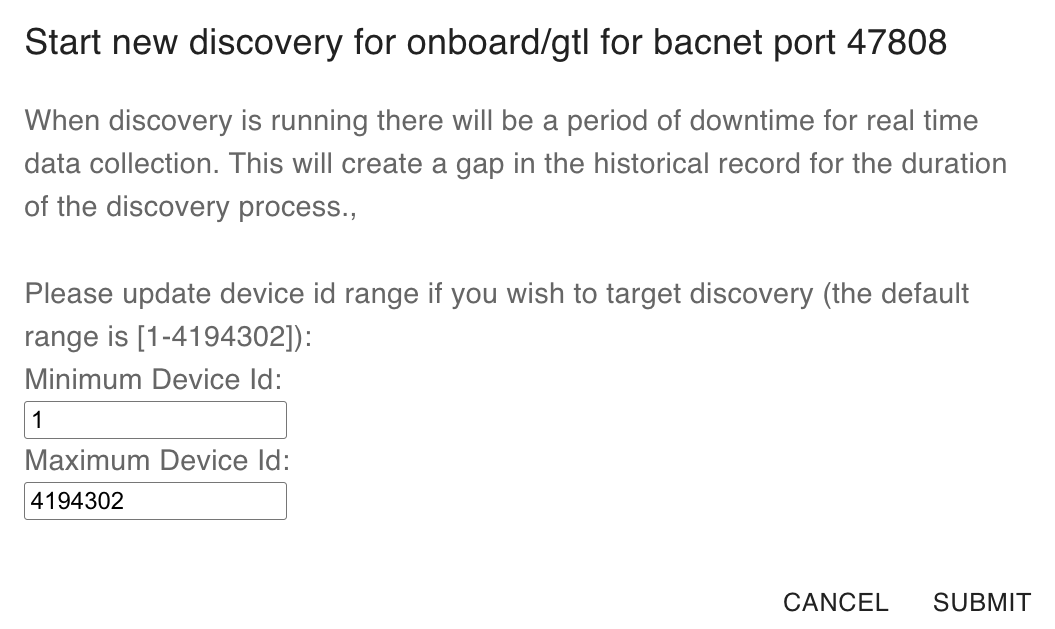
- You will see a device ID input field where you can specify the range of BACnet device IDs to scan.
There are two types of discoveries you can run:
- Global Discovery (Recommended for First Discovery): Scans for all discoverable devices on the network across the full BACnet device ID range [1–4194302]. To run a global discovery, click Submit without entering any device IDs. The Edge Node will perform a network-wide scan and return all discoverable devices.
- Targeted Discovery: Scans a specific range of device IDs for faster, more controlled results. To run a targeted discovery, enter the smallest and largest device IDs in the range (e.g., 1020–1029). The Edge Node will scan all devices within that range, including the boundary IDs.
📊 Monitor Discovery Status
Once a discovery is initiated, you can track its progress directly on the BACnet tab through the Latest Discovery Status column.
| NEW | ...discovery has been initiated and is queued to run. |
| IN_PROGRESS | ...the Edge Node is actively scanning the network for devices. |
| SUCCESS | ...discovery completed and results are available in the Staging Interface. |
| FAILED | ...discovery encountered an error. Please contact Onboard Support for next steps. |
Use the refresh button on the BACnet tab to check for status updates. Depending on the network size and number of devices being scanned, a discovery can take anywhere from a few minutes to over an hour to complete.
⚙️ Behind the Scenes
During discovery, the Edge Node communicates with BACnet devices using broadcast messages on the building network. Device information, equipment, and points discovered during this process are securely transmitted to the Onboard Cloud and made available in the Staging Interface for AI modeling and publishing.
If a BACnet device is found but has no points exposed on the network, the Edge Node will automatically skip it. Devices with 0 points do not appear in the Staging Interface.